

Watch this quick guide to learn how to access your issues, use features like search, bookmarks, and article view, and get the most out of your Autism Parenting Magazine app on any device. Perfect for enhancing your reading experience!
As a subscriber to our smartphone version, you can receive the magazine on our iPhone, iPad, and Android platforms.
Step 1 - Download App
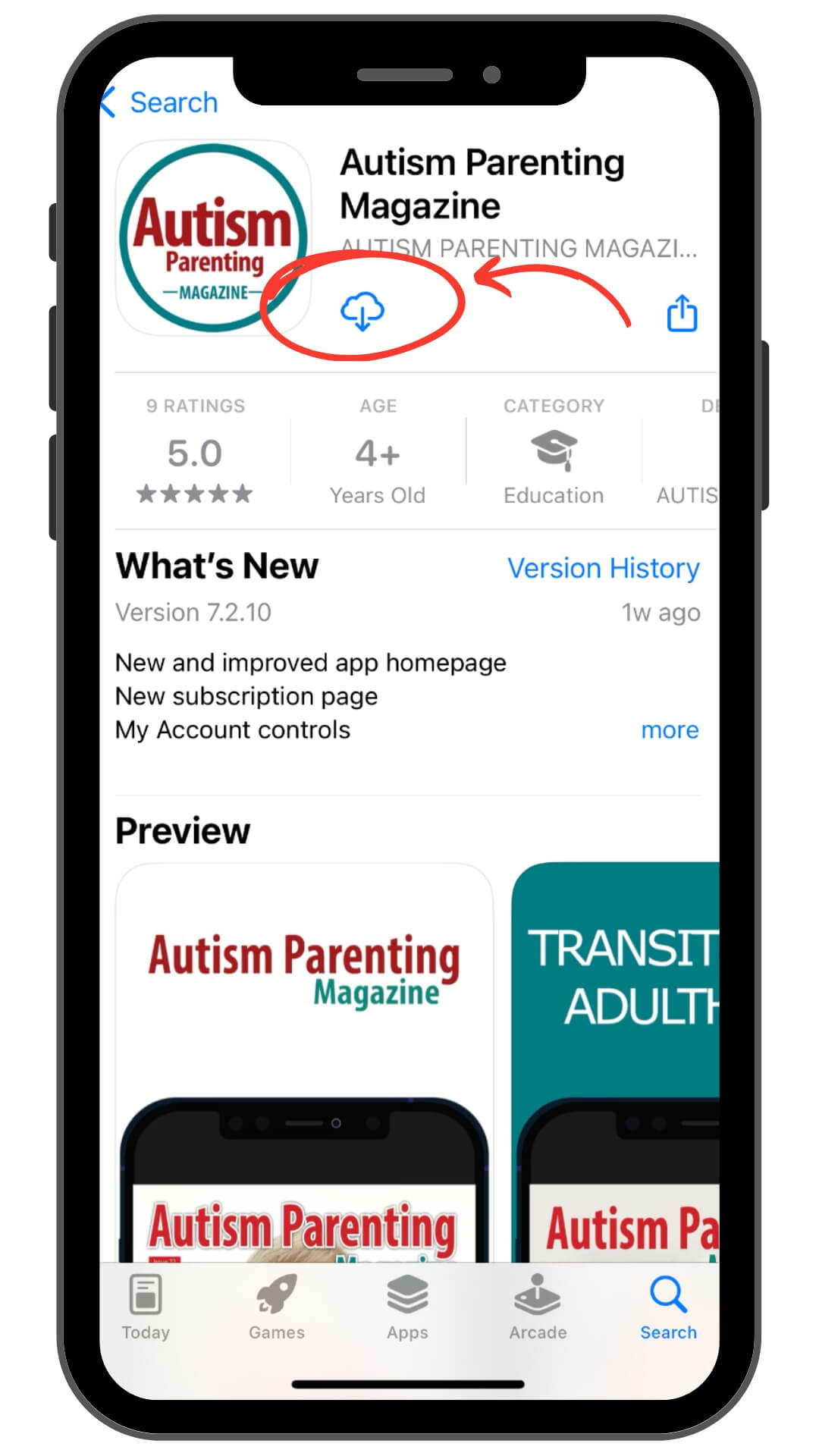
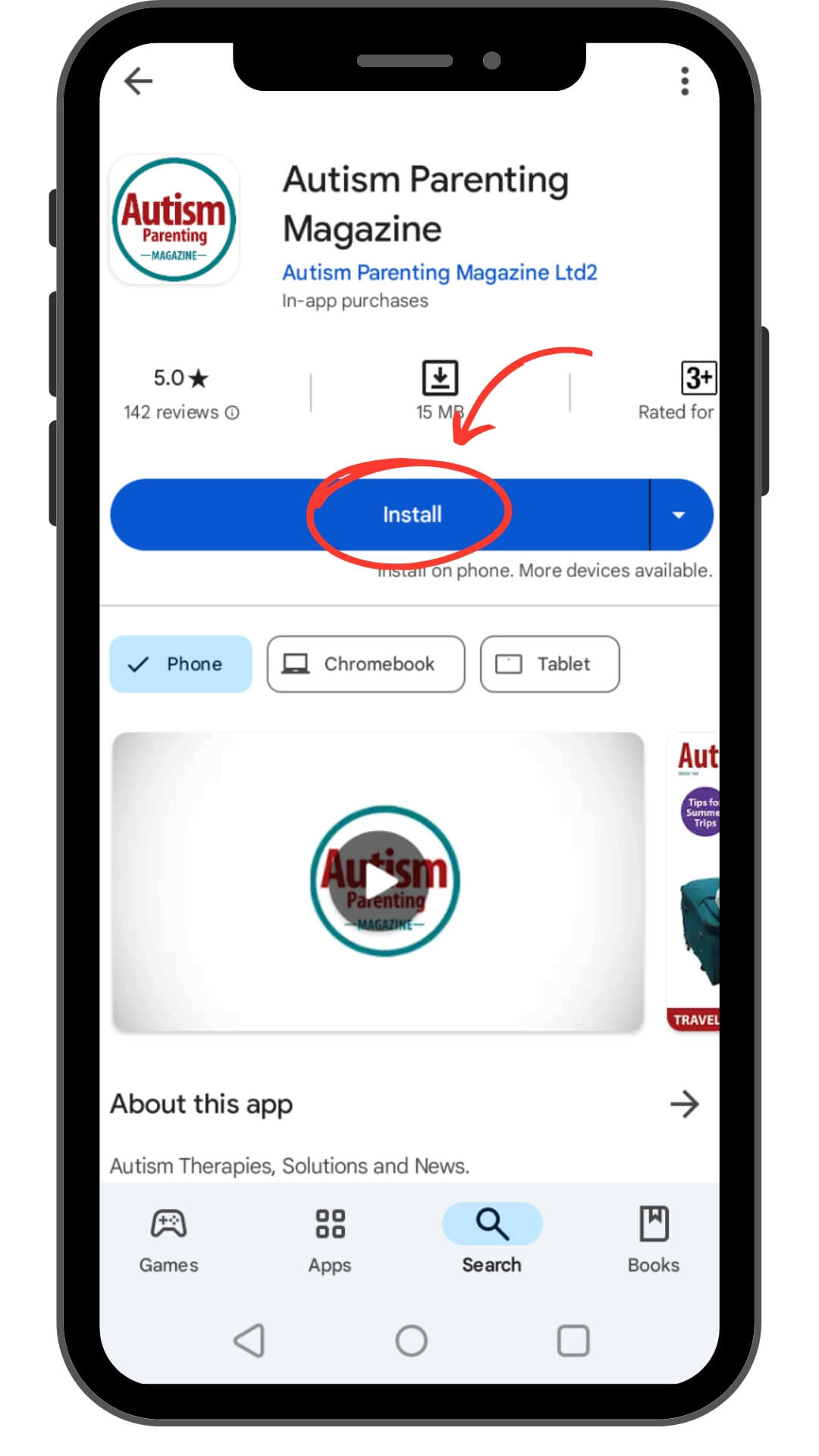
Download the Autism Parenting Magazine app:


If you already have the app installed, you may update it or delete the current app and re-download it.
Step 1 - Download App
Download the Autism Parenting Magazine app:
If you already have the app installed, you may update it or delete the current app and re-download it.
Step 2 - Launch the App
Open the app and swipe through the welcome screens.
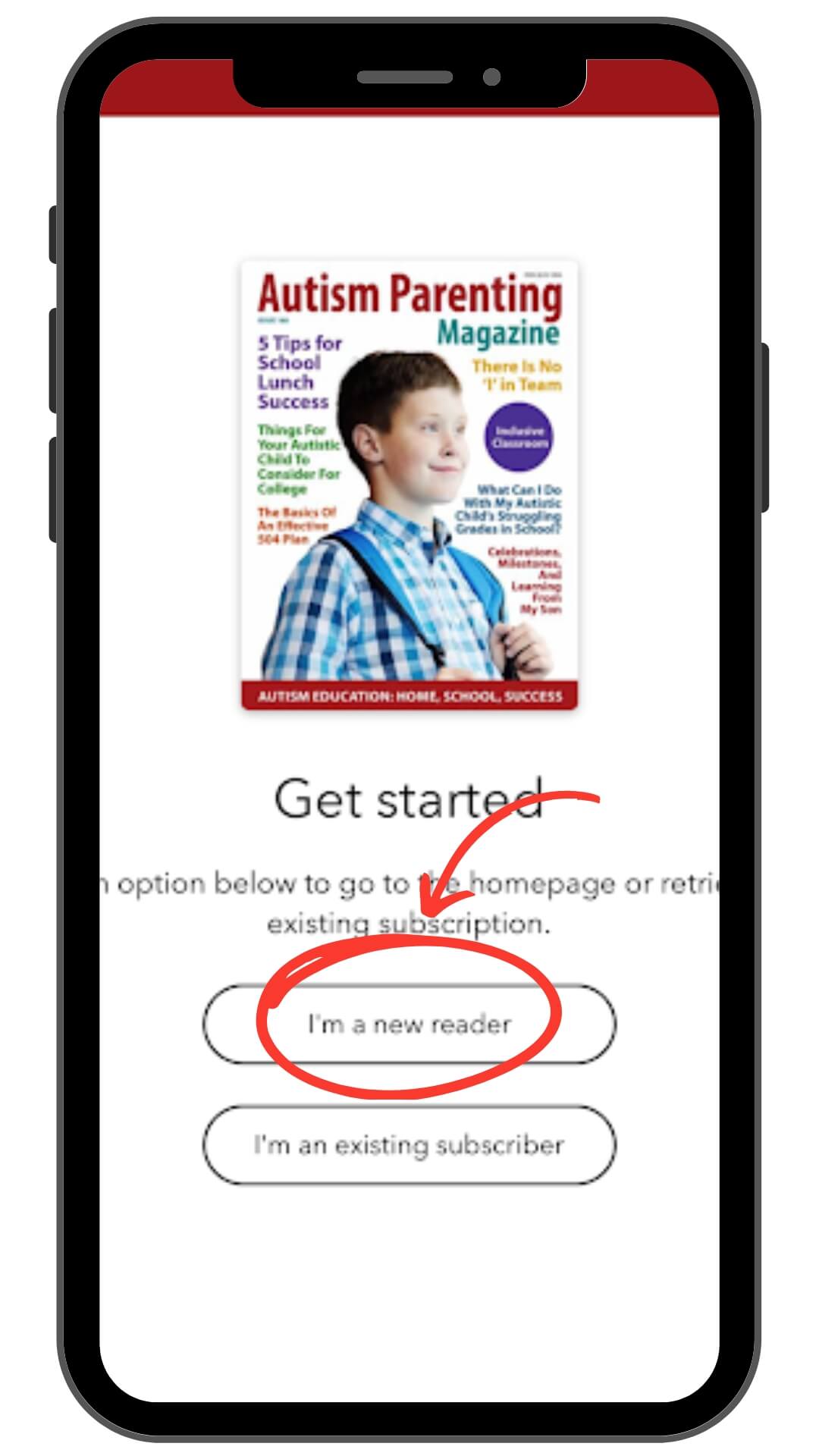
On the final screen, tap “I’m an existing subscriber.” If you need to restore your purchases, go to Options and select “Restore Purchases.” After doing so, the three account options will appear.
If you are a first-time user, tap “I’m a new reader” to access your account. The three account options will appear once you proceed.
Step 2 - Launch the App
Open the app and swipe through the welcome screens.
On the final screen, tap “I’m an existing subscriber.” If you need to restore your purchases, go to Options and select “Restore Purchases.” After doing so, the three account options will appear.
If you are a first-time user, tap “I’m a new reader” to access your account. The three account options will appear once you proceed.
Step 3 - Verify Subscription
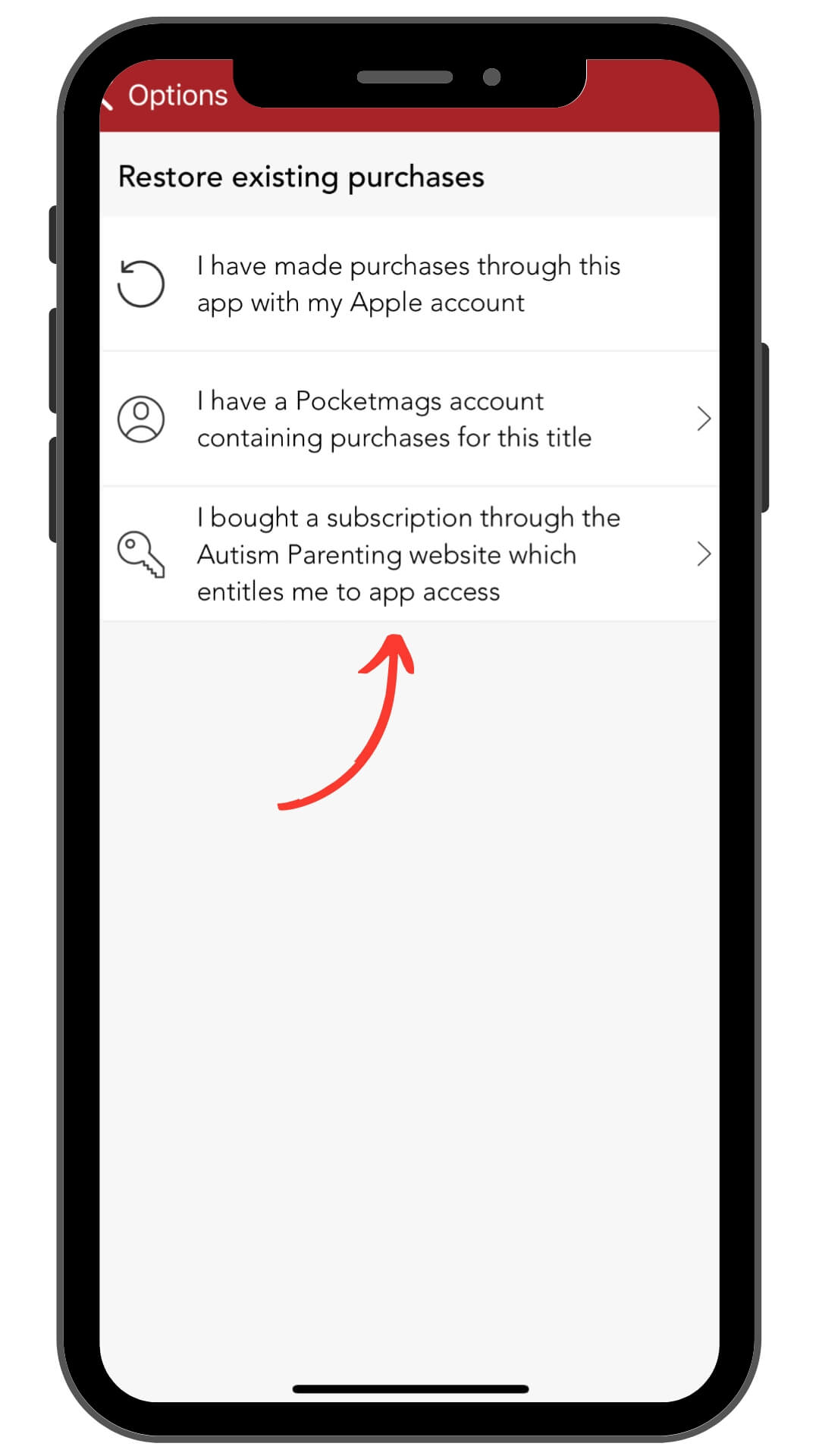
Tap “I bought the subscription through the Autism Parenting website which entitles me to app access.”
Step 3 - Verify Subscription
Tap “I bought the subscription through the Autism Parenting website which entitles me to app access.”
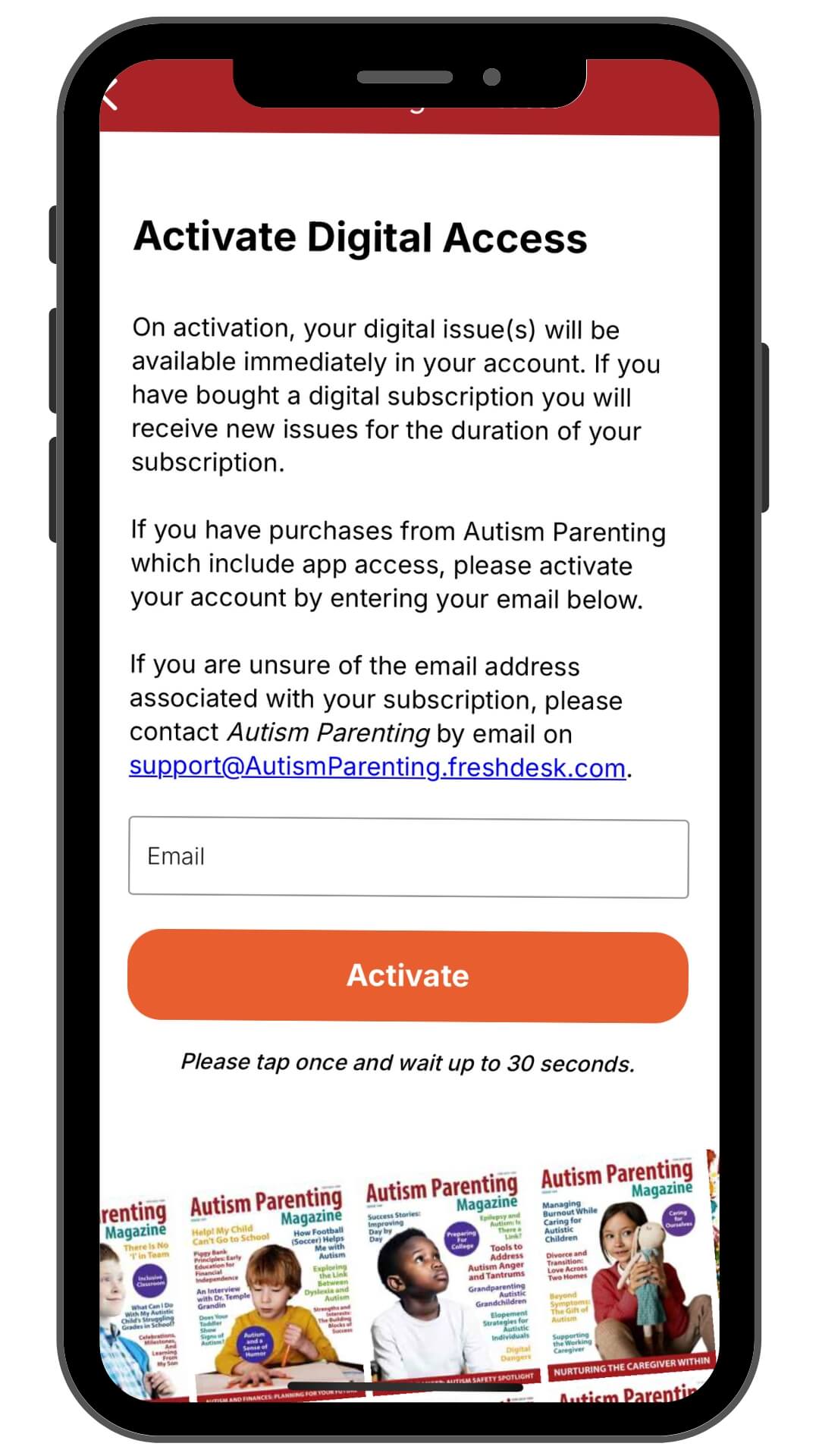
Step 4 - Activate Digital Access
Enter your Autism Parenting Magazine email address. If you are unsure of the email address associated with your subscription, please contact us at support@autismparentingmagazine.com.
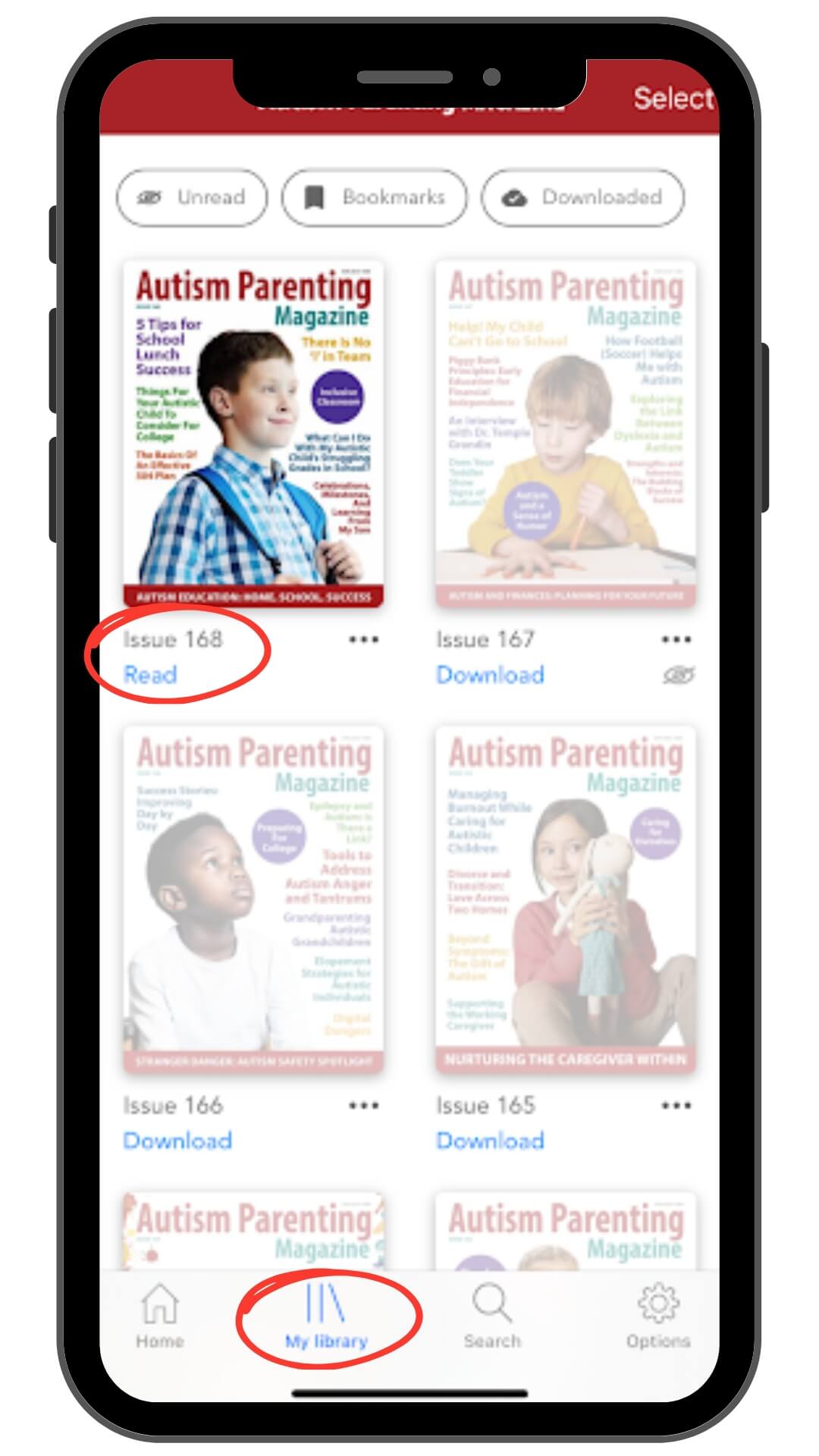
Step 5 - Access Your Magazines
Your magazine editions will be available to read in the “My Library” section of the app. Tap the cover of an issue you want to read.
Step 6 - Reading
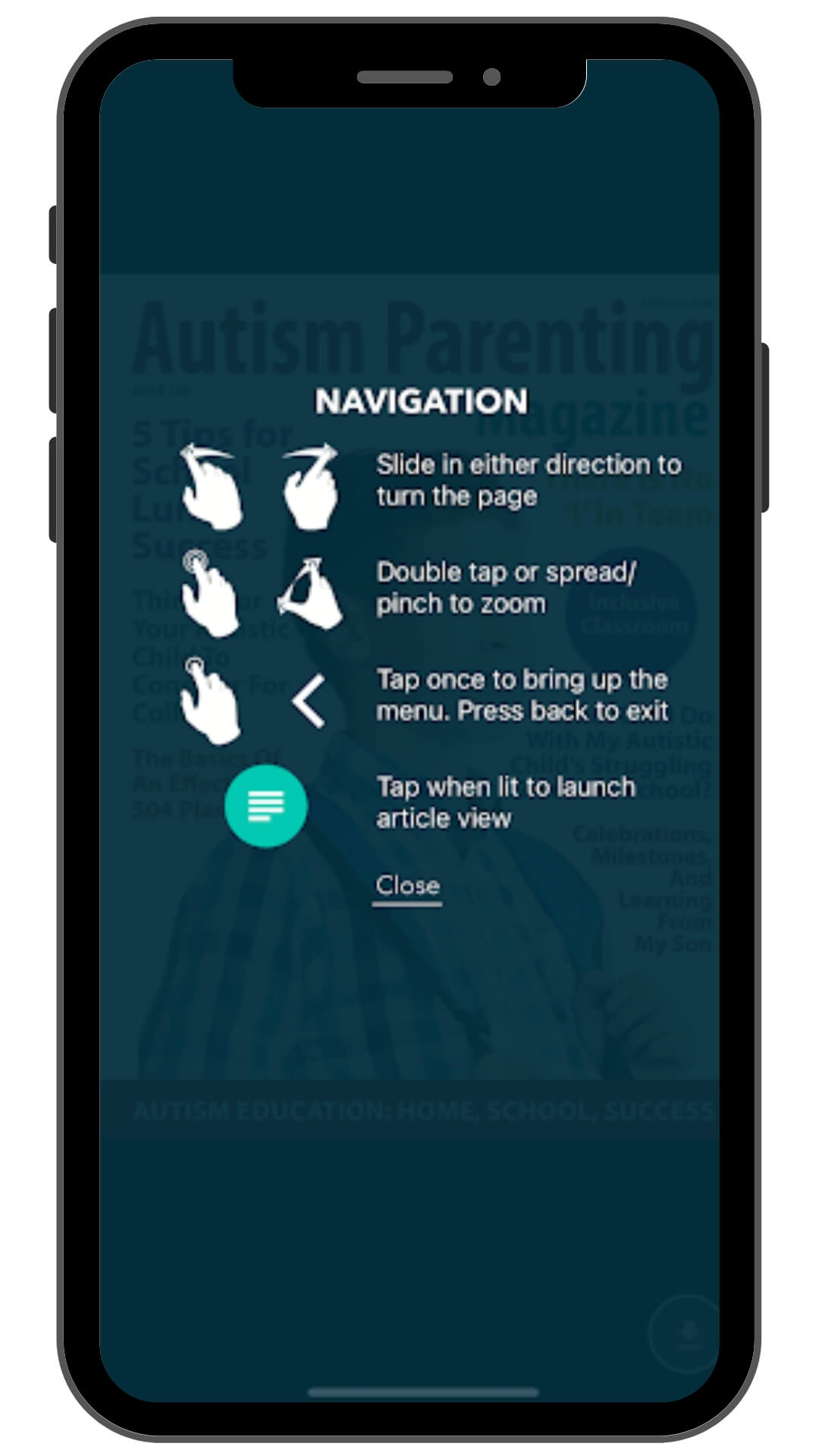
Turn the page by swiping left or right. Zoom by double-tapping or using spread and pinch gestures. Tap the screen once to bring up the menu and tap the 'Back' button to exit an issue.
If you need further assistance, please don’t hesitate to email us. We would also appreciate it if you could give the magazine a positive review when prompted.
Step 6 - Reading
Turn the page by swiping left or right. Zoom by double-tapping or using spread and pinch gestures. Tap the screen once to bring up the menu and tap the 'Back' button to exit an issue.
If you need further assistance, please don’t hesitate to email us. We would also appreciate it if you could give the magazine a positive review when prompted.
Highlighted Features of the Autism Parenting App
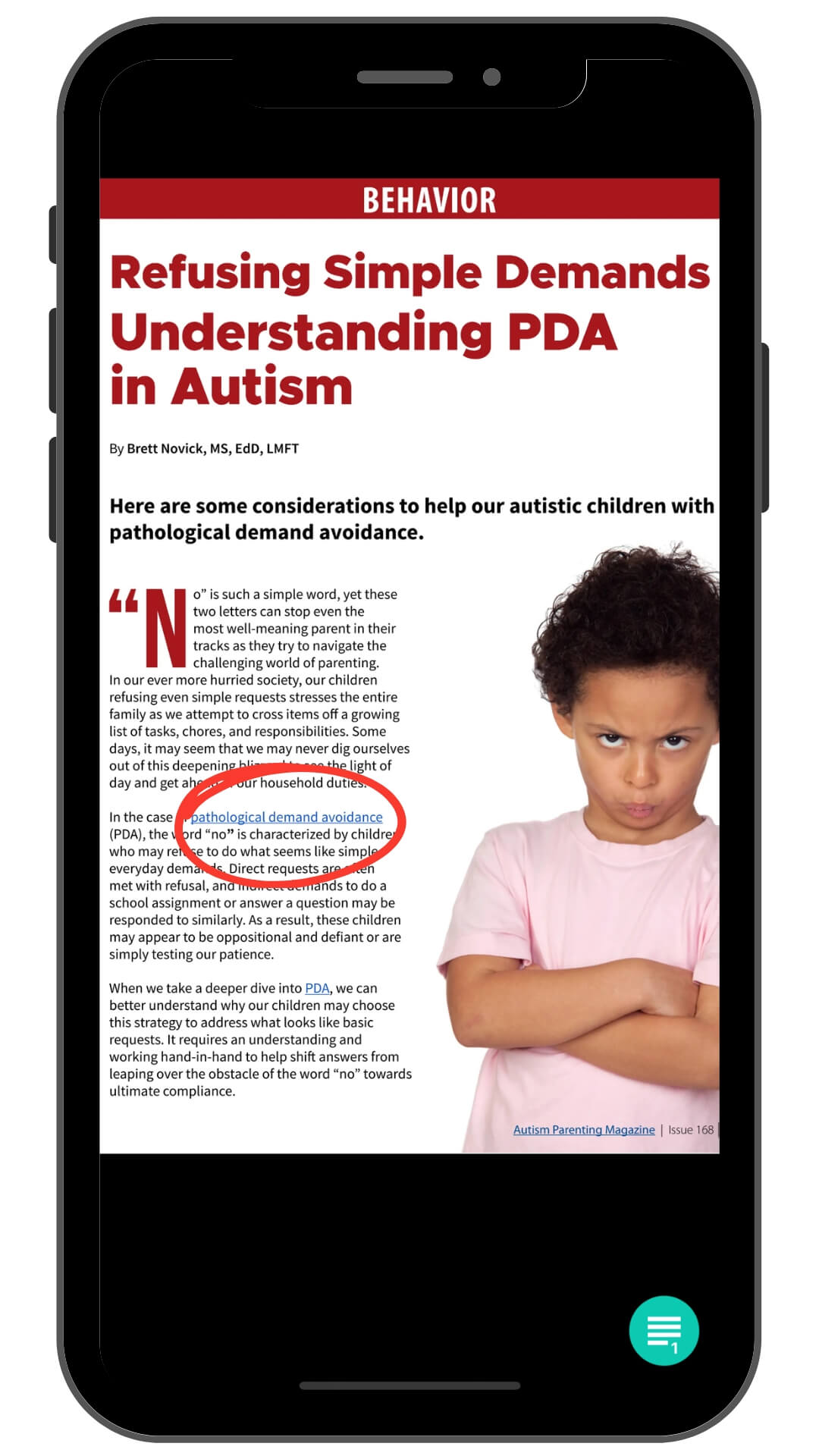
Interactive Magazines
Engage with content through clickable links, buttons, videos, and pop-ups. The app’s interactive features let you explore additional resources with just a swipe or tap.
Interactive Magazines
Engage with content through clickable links, buttons, videos, and pop-ups. The app’s interactive features let you explore additional resources with just a swipe or tap.
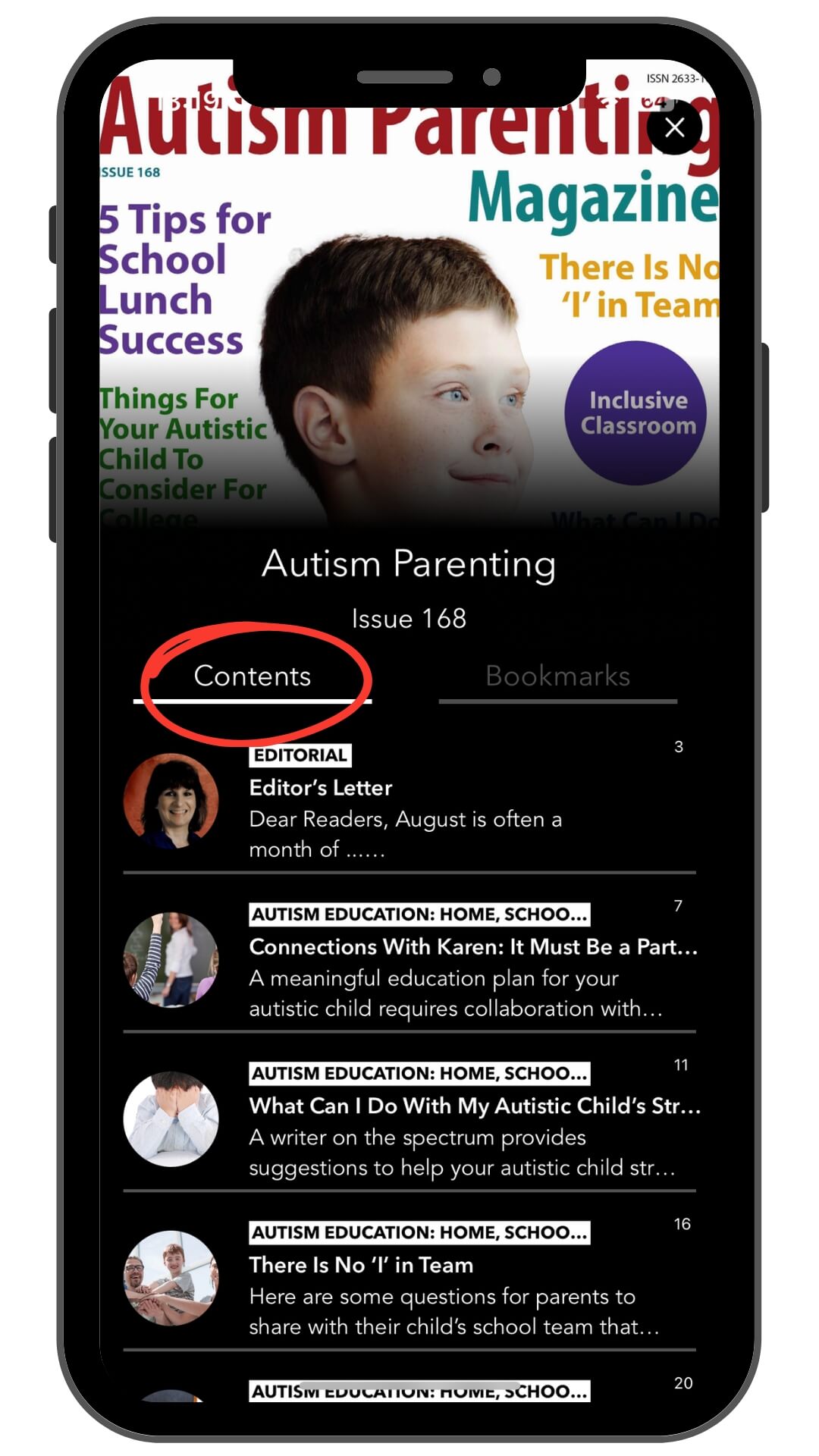
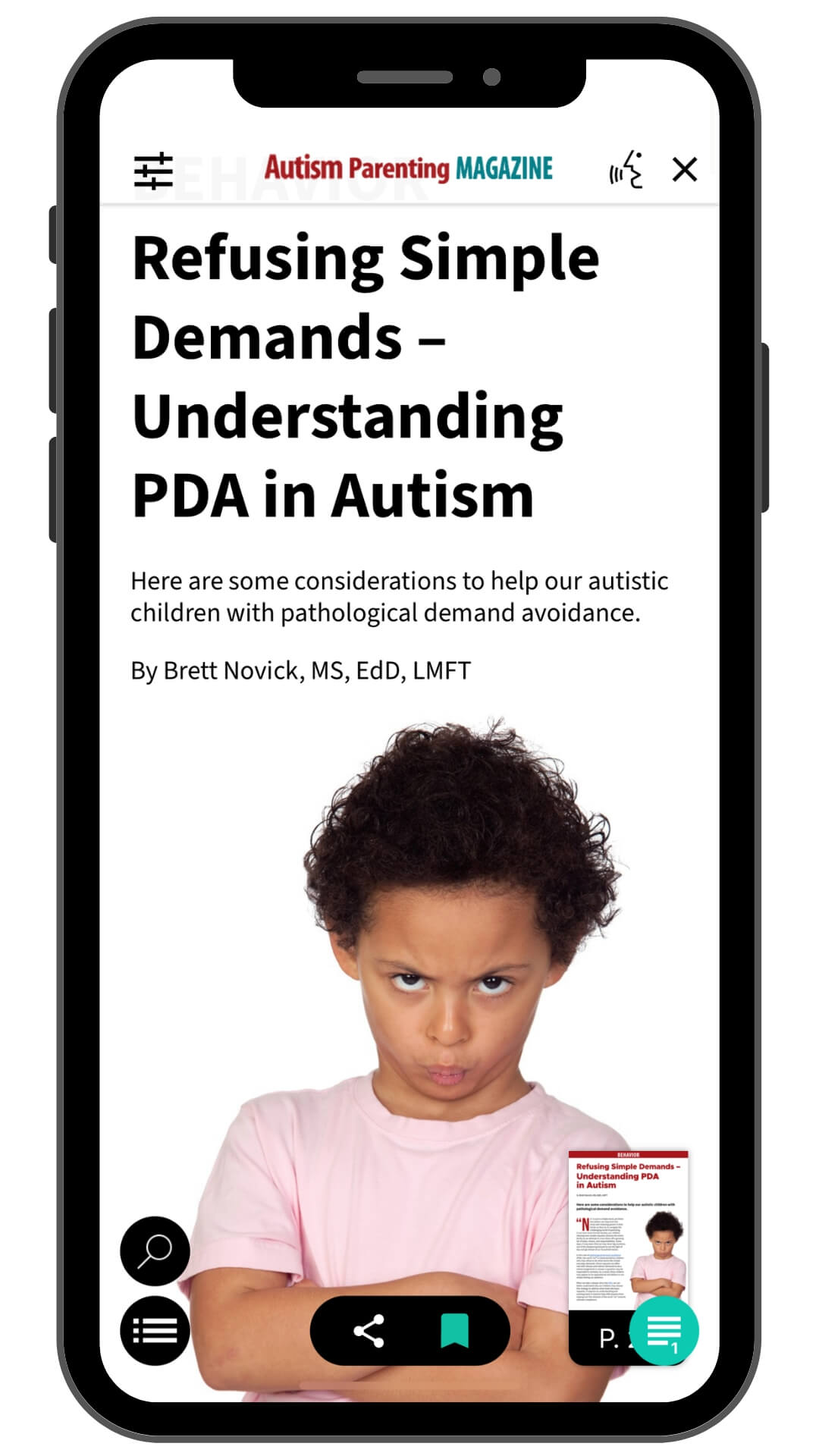
Article View
Easily switch between full-issue view and article view. The article view lets you focus on specific content without the need to scroll through the entire magazine, making reading even more convenient.
Article View
Easily switch between full-issue view and article view. The article view lets you focus on specific content without the need to scroll through the entire magazine, making reading even more convenient.
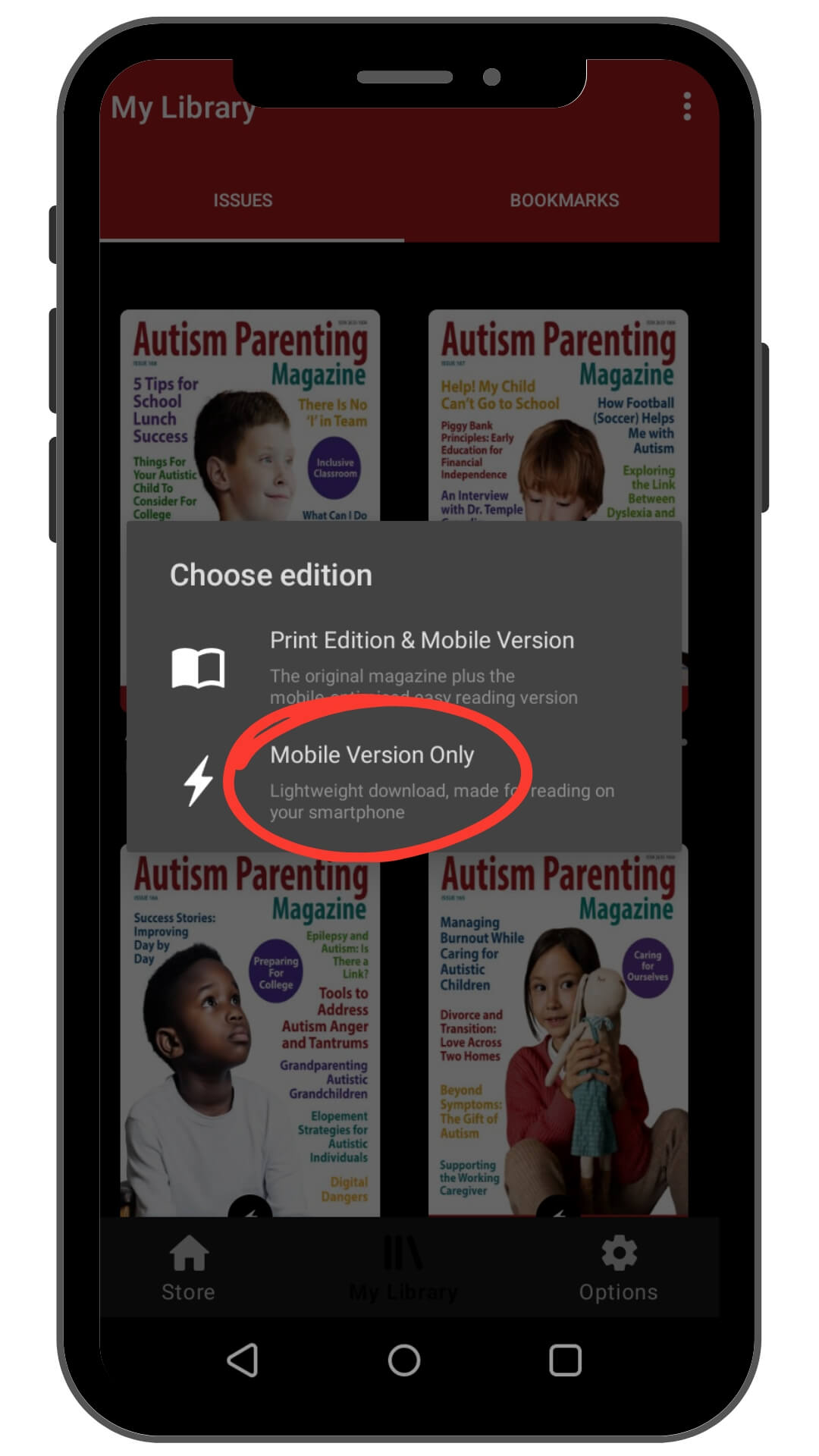
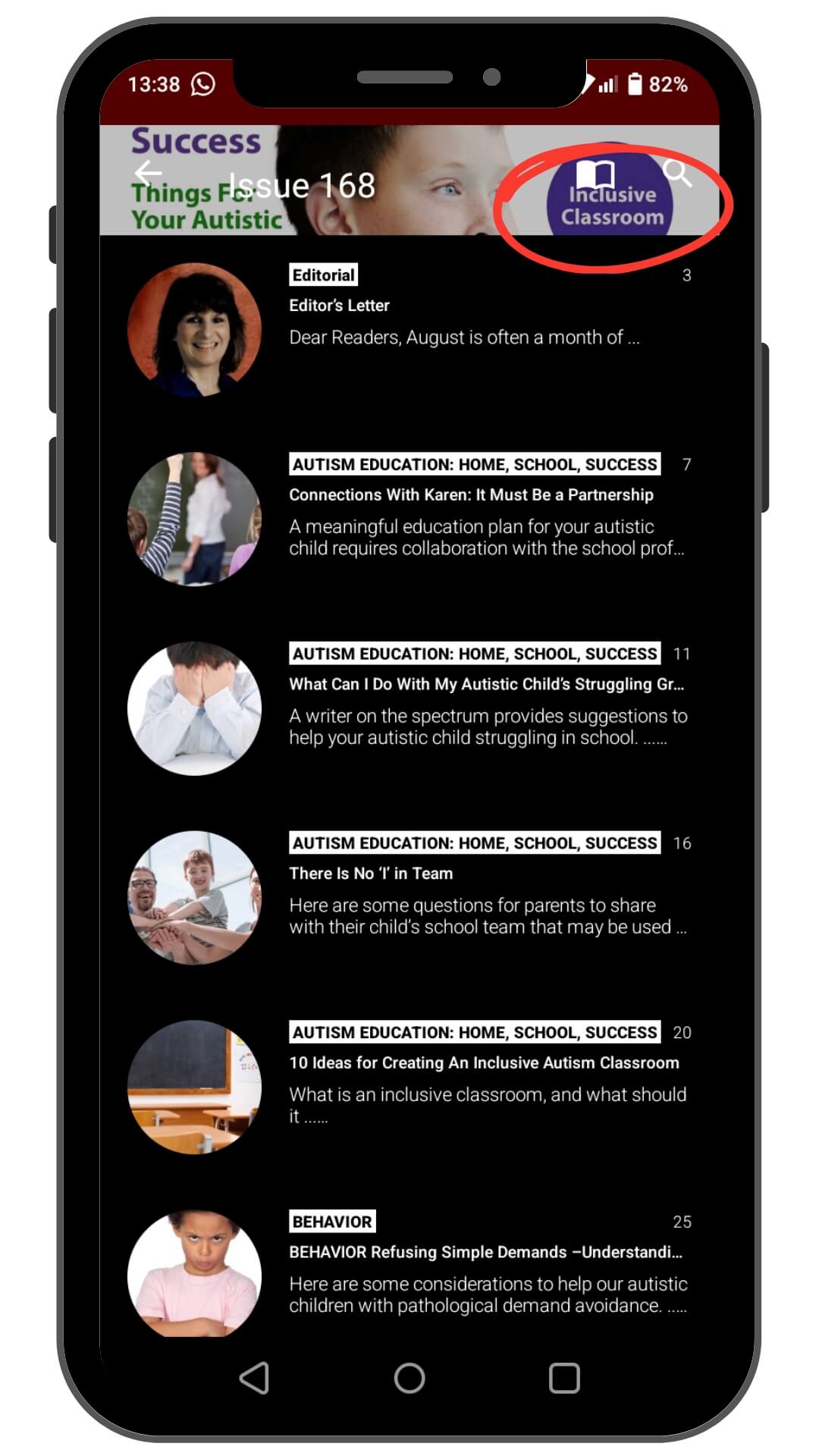
Print edition & Mobile version (Android)
Easily switch between full-issue view and article view. The article view lets you focus on specific content without the need to scroll through the entire magazine, making reading even more convenient.
Print edition & Mobile version (Android)
Easily switch between full-issue view and article view. The article view lets you focus on specific content without the need to scroll through the entire magazine, making reading even more convenient.
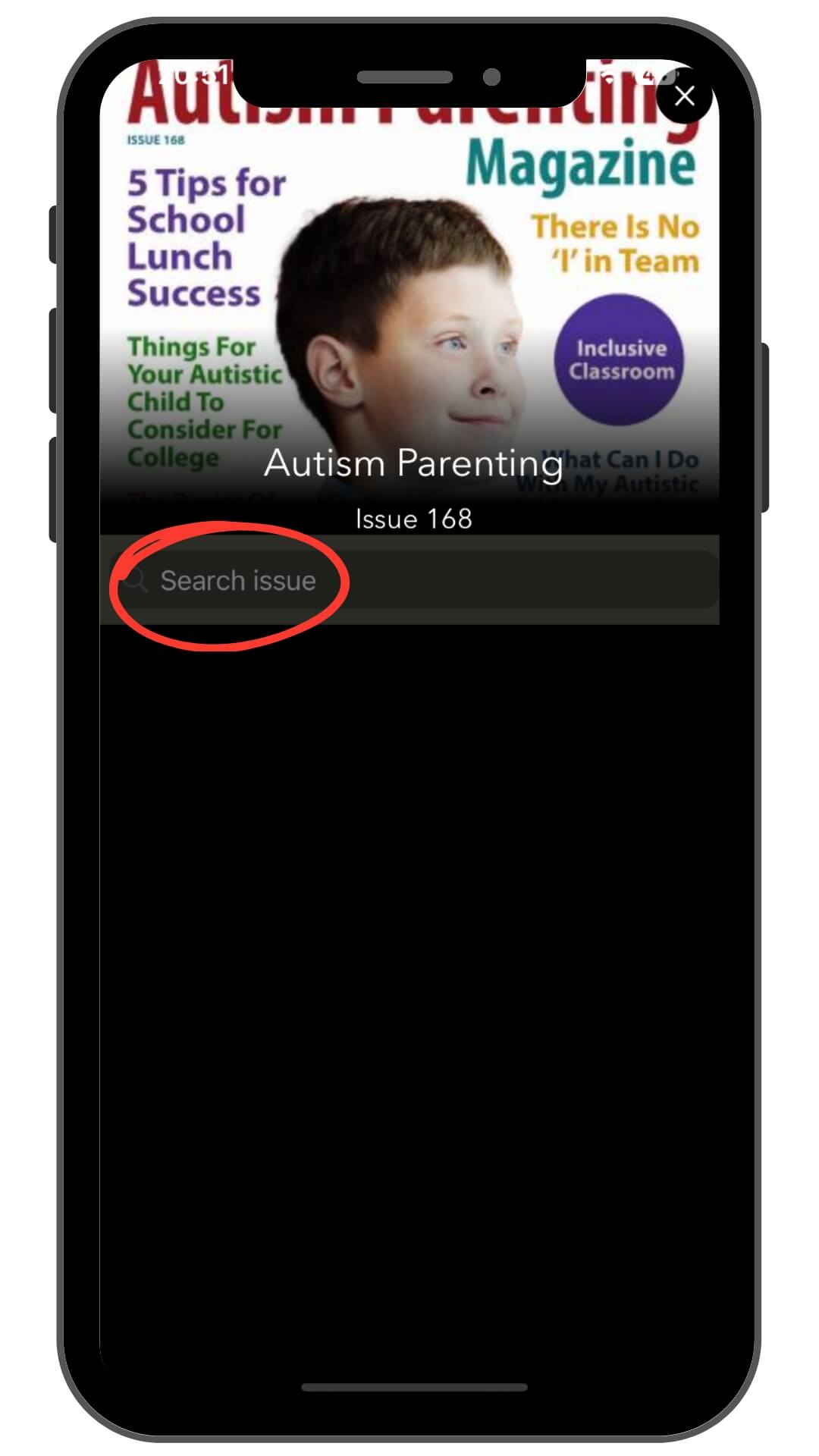
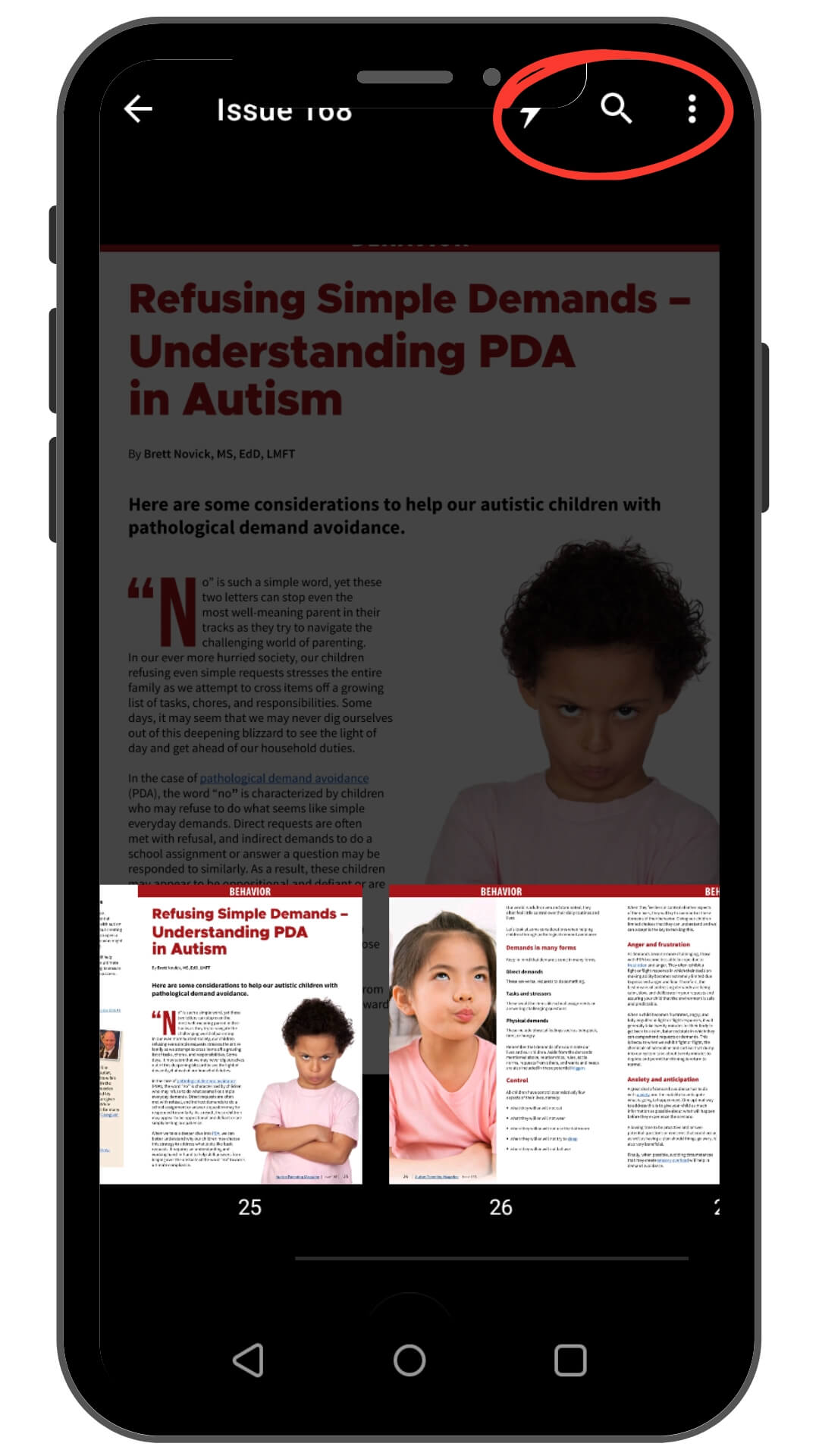
Search Button
Quickly find specific topics, articles, or keywords within the magazine using the built-in search button. This feature makes it easier to locate content relevant to your needs.
Search Button
Quickly find specific topics, articles, or keywords within the magazine using the built-in search button. This feature makes it easier to locate content relevant to your needs.
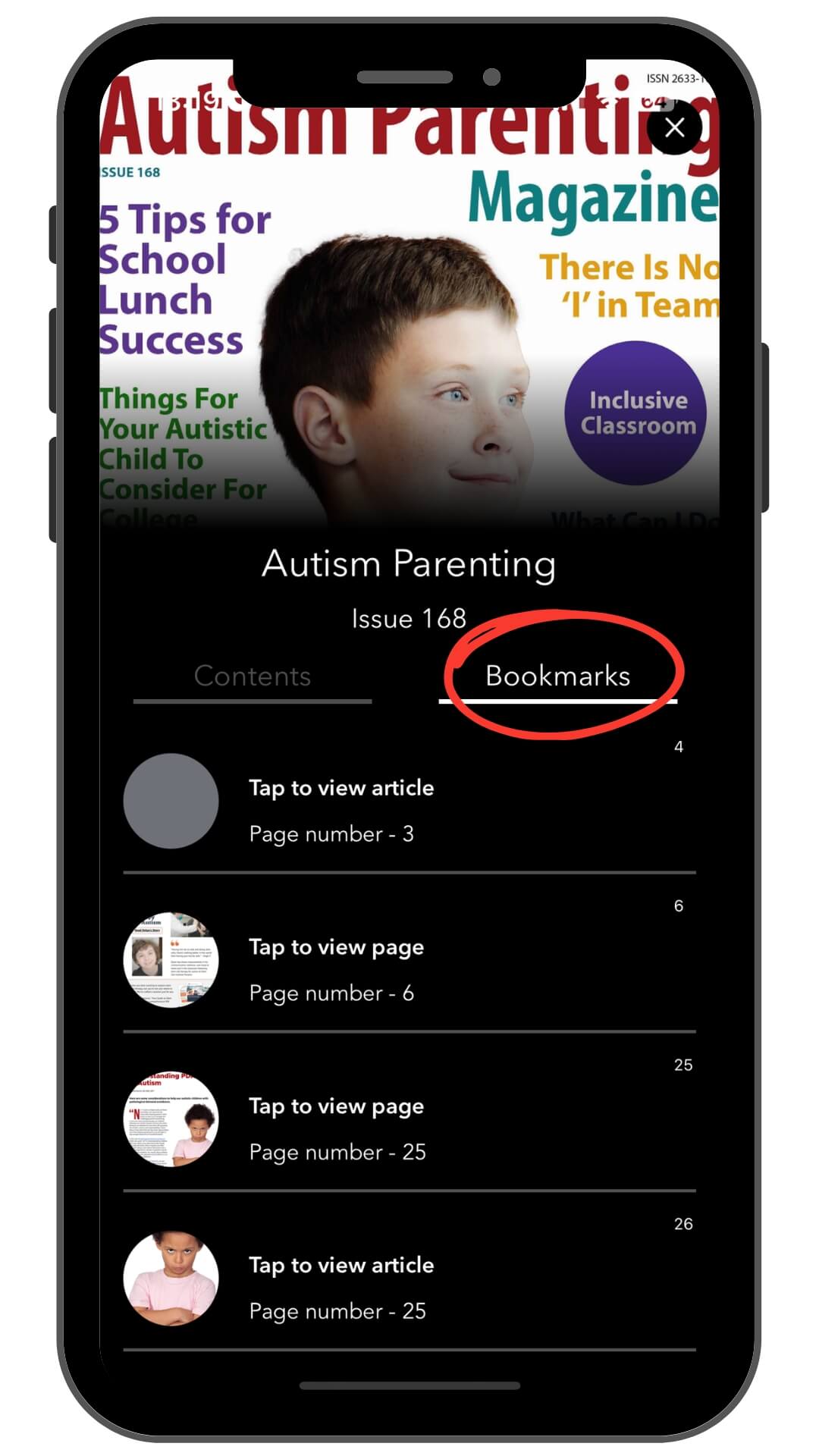
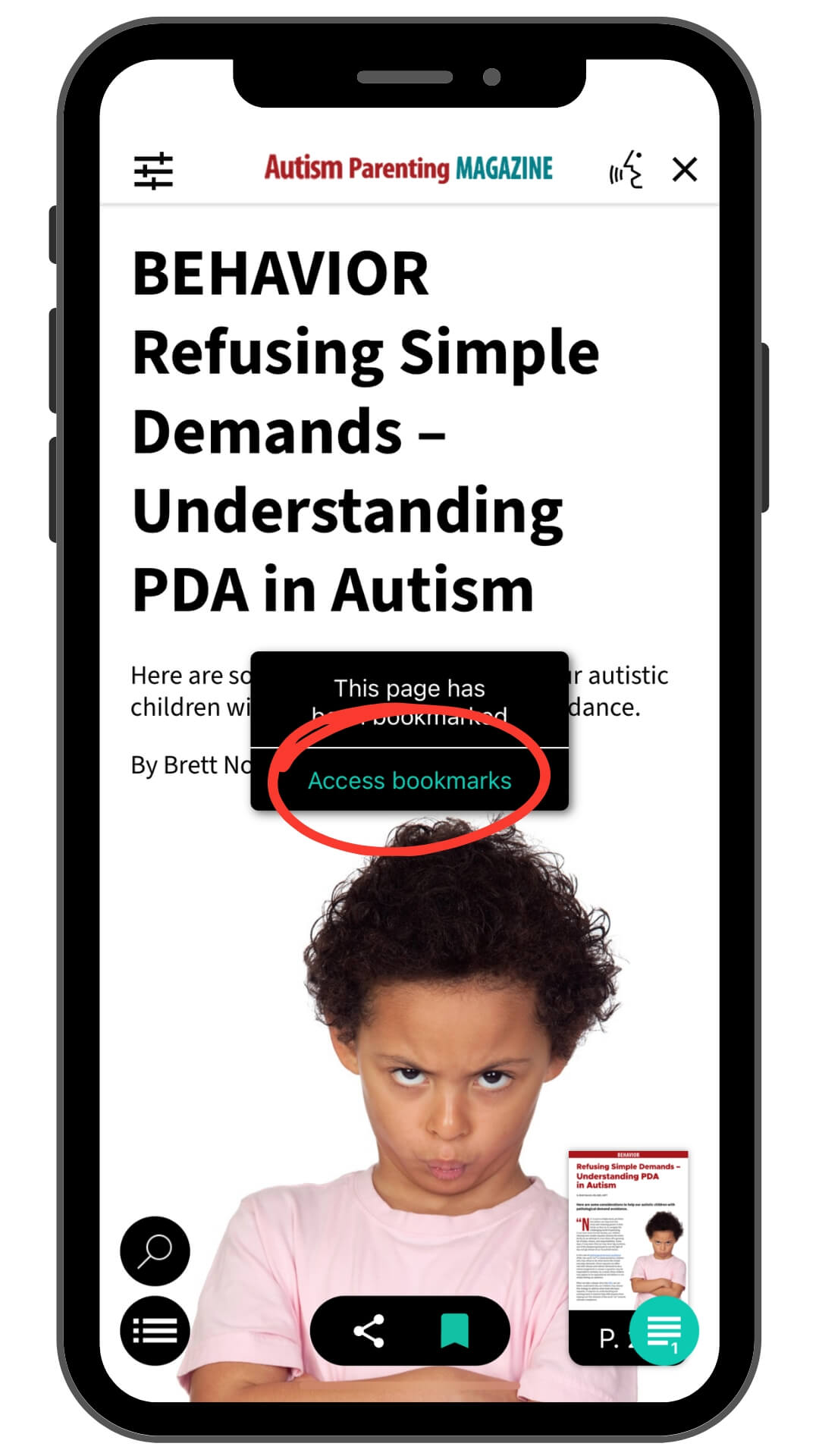
Bookmarks for Quick Access
Easily save your favorite pages or articles. Access saved bookmarks by tapping Bookmarks in My Library. If an edition isn’t downloaded, you can still view just the bookmarked page or choose to download the entire edition. You can also manage or delete bookmarks whenever needed.
Bookmarks for Quick Access
Easily save your favorite pages or articles. Access saved bookmarks by tapping Bookmarks in My Library. If an edition isn’t downloaded, you can still view just the bookmarked page or choose to download the entire edition. You can also manage or delete bookmarks whenever needed.
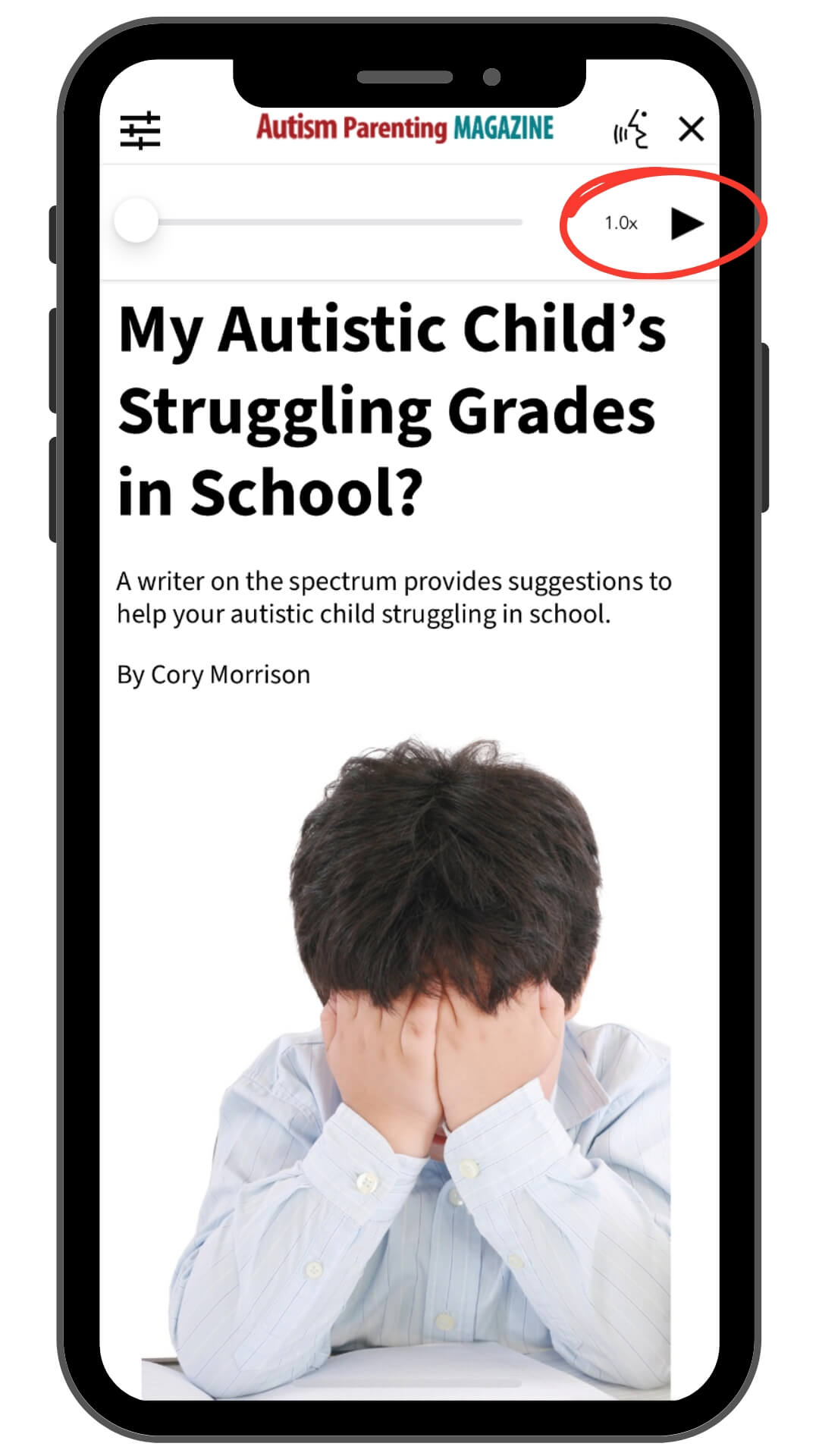
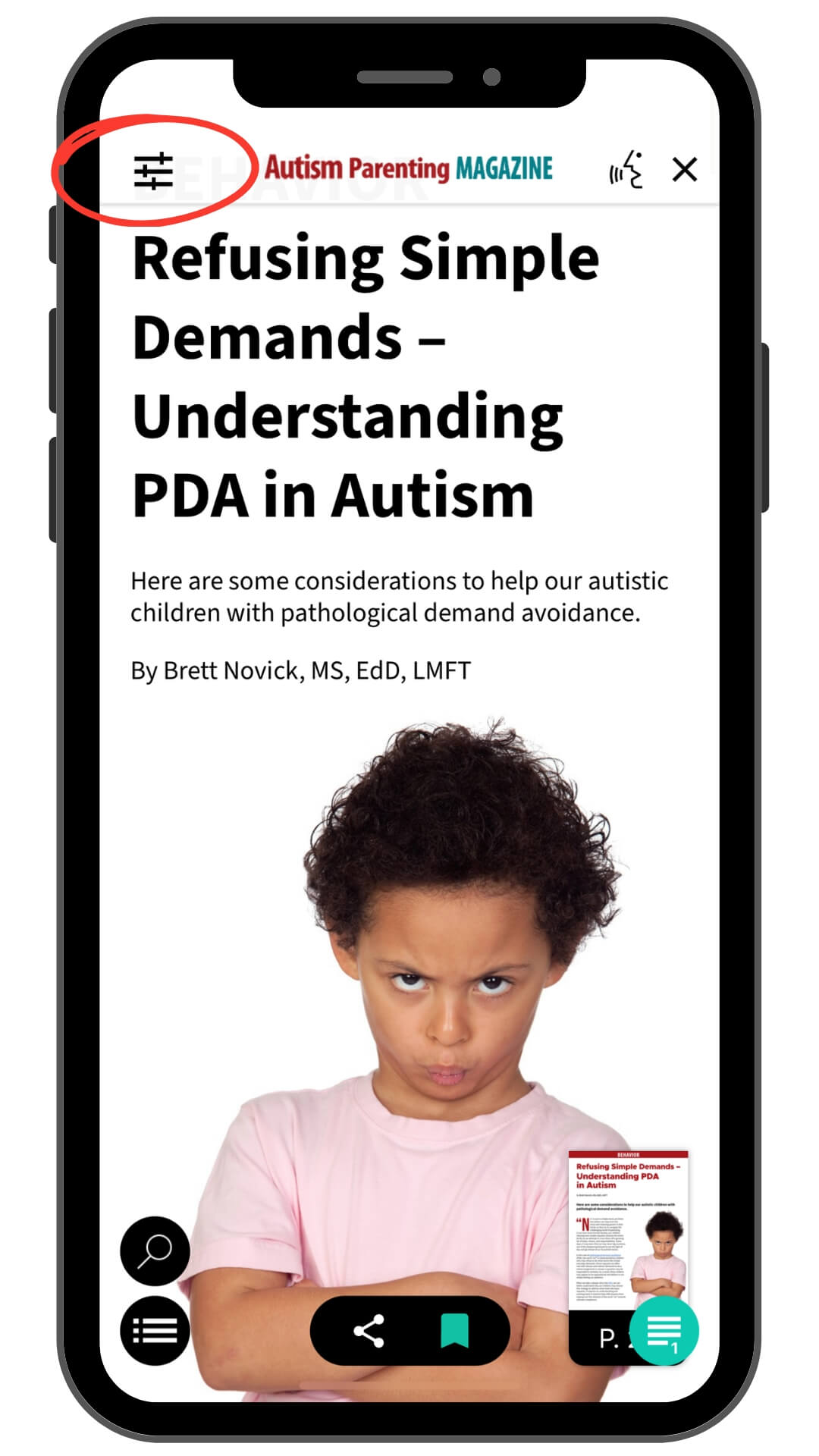
Text-to-Speech
Listen to articles being read aloud with our text-to-speech feature. This is ideal for those who prefer listening or need hands-free access.
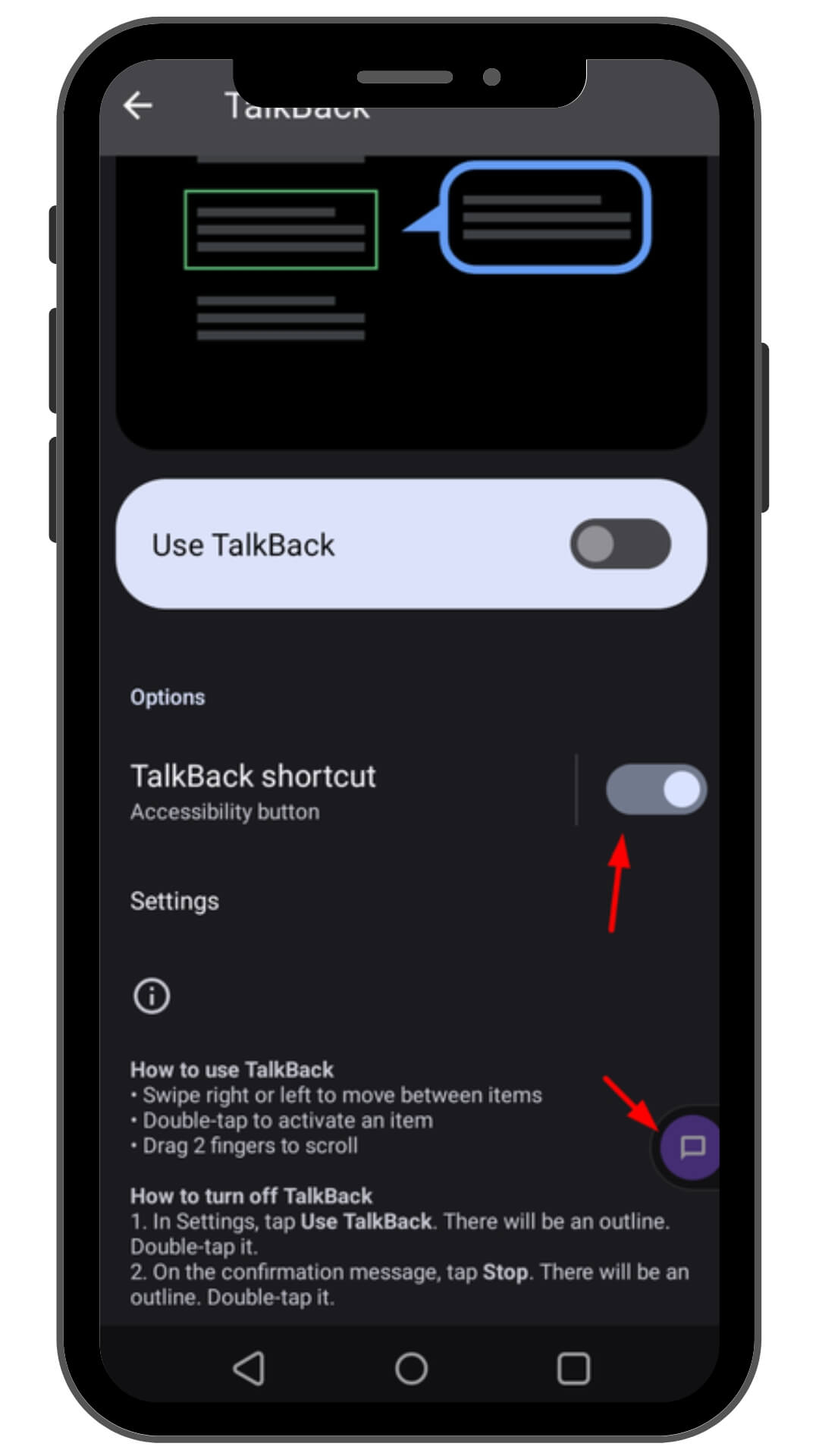
For Android Users:
Good news! The app works great with TalkBack, Android’s built-in screen reader. Just head to your phone’s accessibility settings and switch on the 'TalkBack' feature to get started.
Text-to-Speech
Listen to articles being read aloud with our text-to-speech feature. This is ideal for those who prefer listening or need hands-free access.
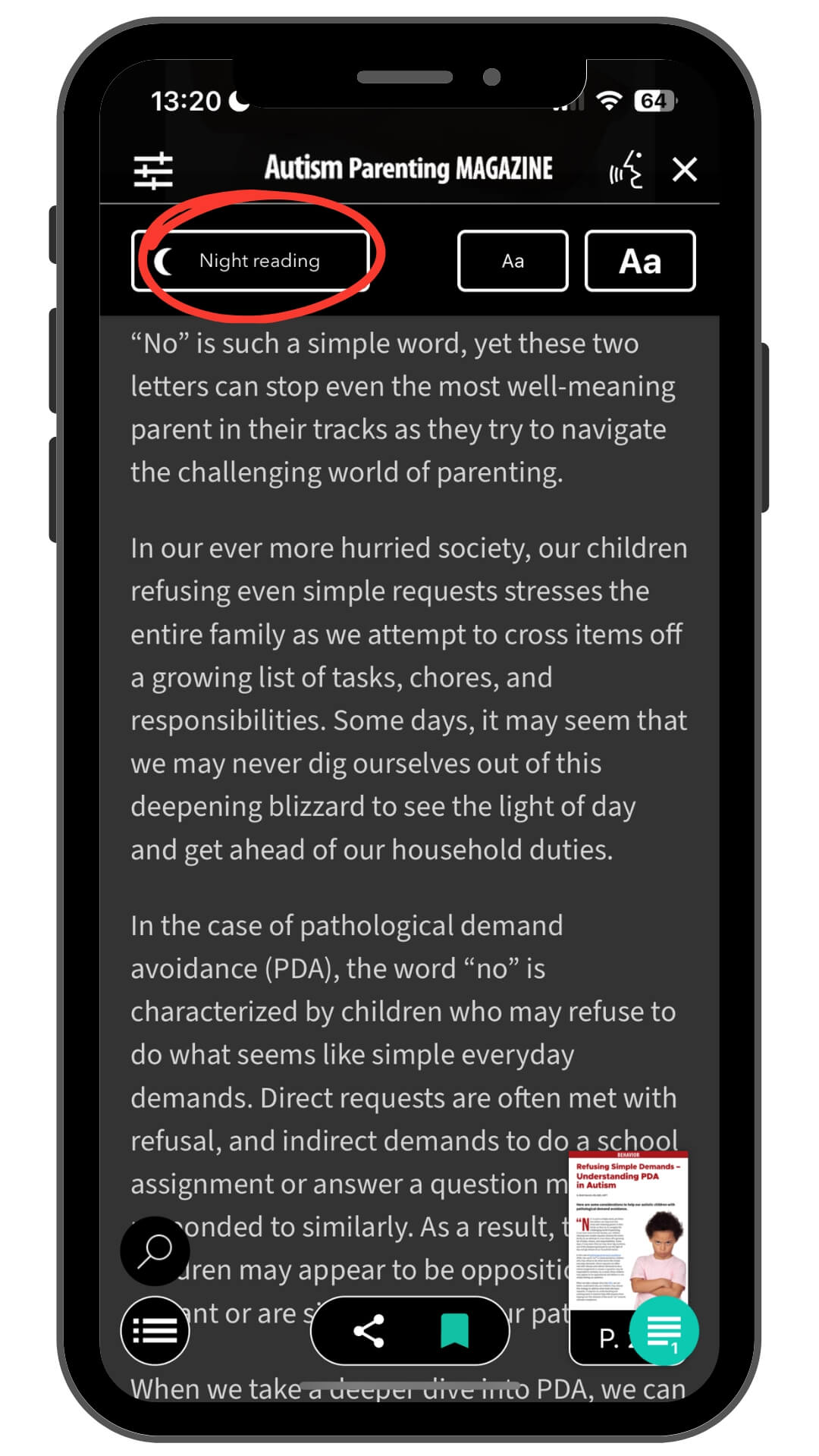
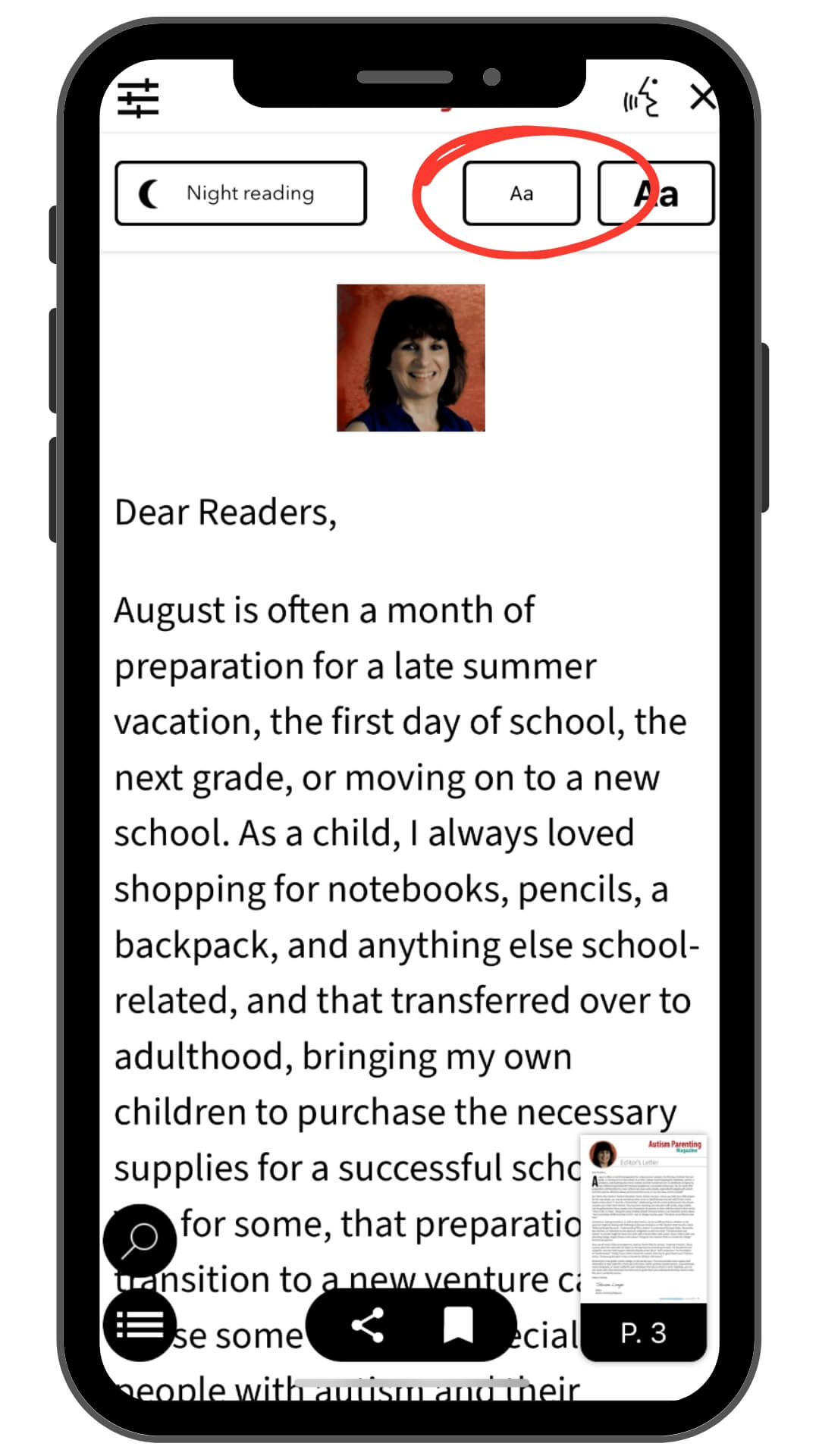
Night Mode for Comfortable Reading
Switch to night mode for a softer reading experience in dim light. Night mode reduces eye strain with a dark background and light text.
Night Mode for Comfortable Reading
Switch to night mode for a softer reading experience in dim light. Night mode reduces eye strain with a dark background and light text.
If you need any more help, feel free to reach out to us through the 'Contact Us' page in the app.